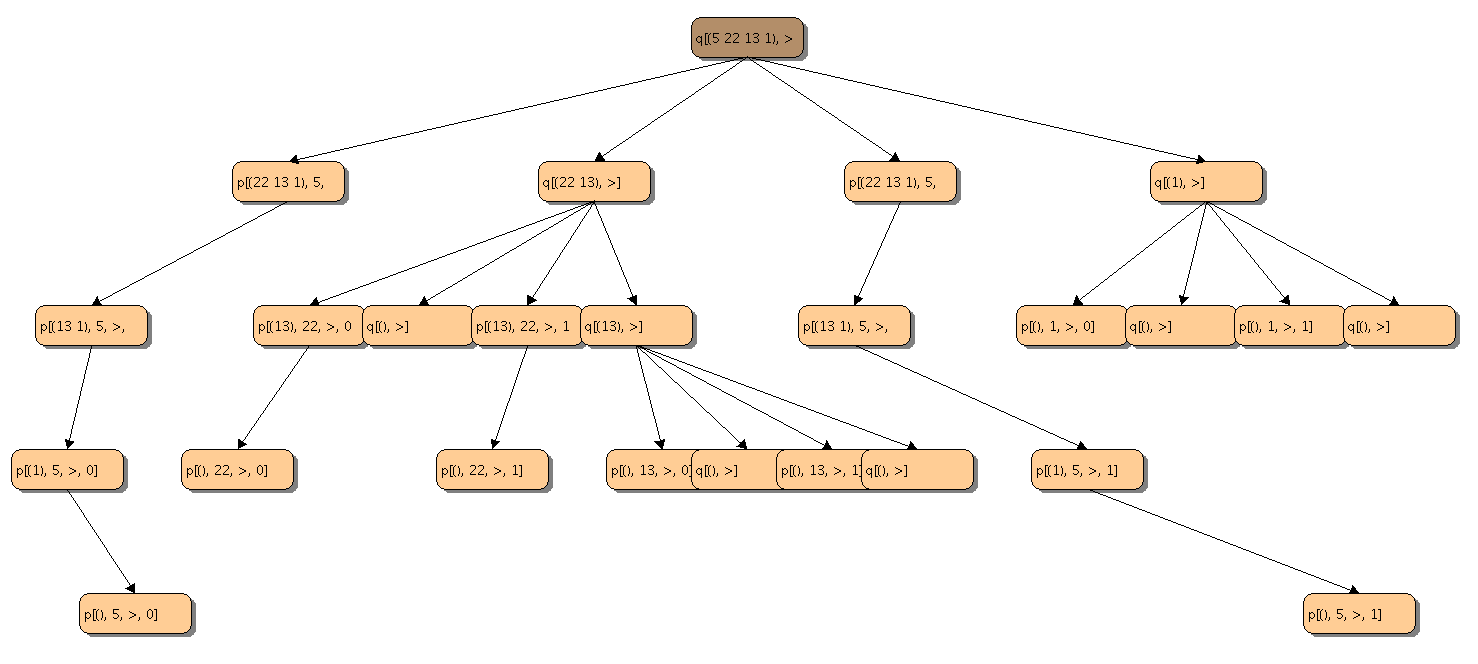
Ever wondered what the Quicksort Algorithm looks like?
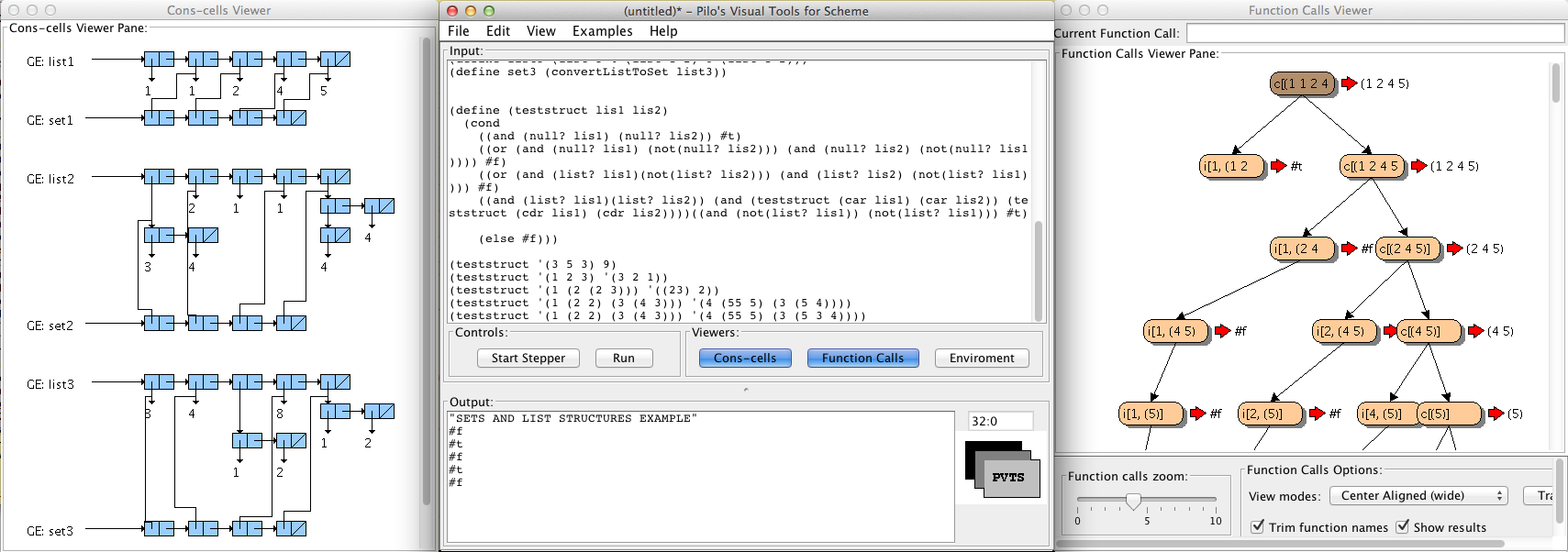
Visualize lists, pointers and function calls in your code. PVTS is a visual interpreter for the Scheme functional programming languages.
It is great for teachers and students as a supporting learning tool.
Click here to see the answer Or download PVTS.jar now from github.com PVTS is an executable JAR file and requires the Java Runtime Environment (JRE), you can get it here.
Linked List Viewer
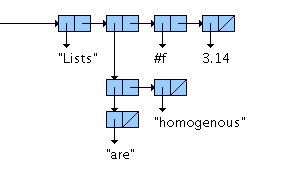
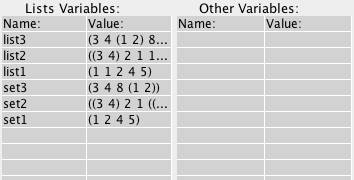
PVTS will show you all the linked lists you have in your code. It will help you understand how pointers in linked-lists work.
Function Call Viewer
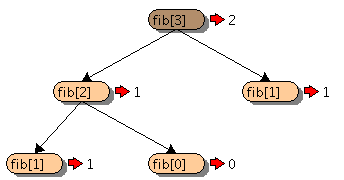
Binary functions as Fibonacci are more easily understood visually. PVTS will draw the functions you defined and called.
Enviroment Viewer
Keep track of the variables and functions you have defined in the global environment. A list of these variables and functions is easily accessible to review them.
Fibonacci Function Calls example
The figure on the right is an example of running the code below in the PVTS visual interpreter that demonstrates how the Fibonacci Algorithm works in a functional programming enviroment.
; Lets define Fibonacci:
(define (fib n)
(cond
((= n 1) 1)
((= n 0) 0)
(else (+ (fib (- n 1)) (fib (- n 2))))))

; (fib 6) evaluates to
(fib 6)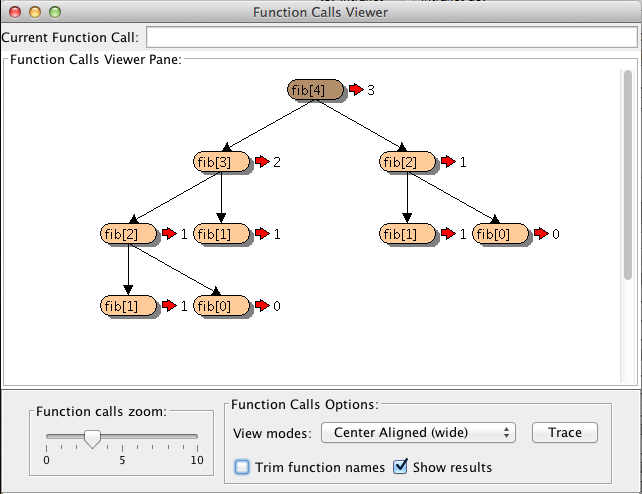
Let PVTS help you learn the basics of functional programming in Scheme.
Although Pilo Visual Tools for Scheme is a basic interpreter (learn more about PVTS language support), anybody that is learning the basics of recursion or wants to enhance his understanding of how pointers and lists work can benefit from giving this a try.